Sabado, Agosto 20, 2011

Martes, Agosto 16, 2011
MICROSOFT WORD
MICROSOFT WORD helps us to write our writings, project and even resume and many more.
The MS Word screen is a simple, user-friendly, and highly customizable interface for word processing. Most of the screen is taken up by the actual document being created or edited, but there are several other elements to the interface as well. Here are the major components of the MS Word screen, from top to bottom:

The Title Bar
- A bar across the very top of the screen provides the name of the document being worked on (or "Document1," if the document has not yet been named), and the standard Windows buttons to minimize, restore or close the Word window.
The Menu Bar
- Just below the title bar, MS Word includes the menu bar, which starts with "File" and ends with "Help." Every single function of MS Word can be reached through these menus.
The Toolbars
- Below the menu bar of MS Word are the main toolbars. Although these can be customized to display as few or as many toolbars as you wish, these toolbars usually begin with the Standard and Formatting toolbar.
The Document
- Just below your toolbars is the actual document you're creating. A blinking cursor usually marks the space of insertion when you type a letter, number, symbol or carriage return.
More Toolbars
- Sometimes there will be additional toolbars below the document itself. For instance, the Drawing toolbar is often found underneath the document.
The Information Panel
- At the very bottom of the MS Word screen is a thin information panel that includes information such as the document's current page, section, line and language.
Typing

In this topic I learned how to type properly and the proper posture when typing and also in where are you going to put your fingers in the keyboard or the position of your fingers in the keyboard. We also did and exercise in typing. We practiced in an online practice typing. We typed words in just 60 sec. I learned that practicing typing helps us to type faster. You don't have to type fast to practice typing, you just have start at slow typing then slow but without looking at the keyboard and then fast and not looking at the keyboard.
In typing there are proper posture and positions of fingers. Here are some examples of proper posture/keyboarding principles when typing:
- Use the home row technique.
- Keep wrists up not resting on desk or keyboard to prevent Carpal Tunnel Syndrome.
- Place feet flat on the floor in front of you.
- Sit with back straight and supported by backrest of chair.
- Keep elbows close to your sides with forearms slanted slightly upward to the keyboard.
- Eyes should remain on the source copy while typing.
a s d f j k l ;
These are the positions of your finger in the HOME KEYS:
f and j for the left and right FOREFINGERS.
d and k for the left and right MIDDLE FINGERS.
s and l for the left and right RING FINGERS.
a and ; for the left and right SMALL FINGERS.
These are the positions of our fingers in letter keys:
FOREFINGERS: F R V J U M AND G T B H Y N
MIDDLE FINGERS: D E C K I
RING FINGERS: S W X L O
SMALL FINGERS: A Q Z ; P /
You have to learn reaching letters too.
Linggo, Agosto 14, 2011
history of computers.
History of computers has many generation and gadgets that has used.
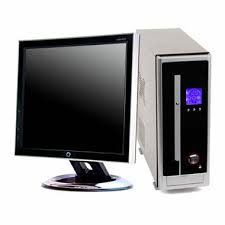 Computers as we know them today have progressed greatly over thousands of years. From the first counting and adding machine to the use of paper memory, computers continue to grow with technology. Who will know what they will be like in another hundred of years? And who will be the successful one who will continue the technology years?
is the improvement on Pascal's machine.
DIFFERENCE ENGINE
was a mechanical calculator that operated automatically that was made by CHARLES BABBAGE.
ANALYTICAL ENGINE
was the first fully-automatic calculating machine that was constructed by a British computer pioneer CHARLES BABBAGE.
PUNCHED CARDS-TABULATING MACHINE
it was the first punched card machine in 1890's more than a hundred years ago.
it was used to read data and store for the future years.
THE FIRST GENERATION- VACUUM TUBES
Characteristics of 1st generation computers
Below are the following gadgets and persons that were used in the early years:
ABACUS- is the oldest known form of computing.
- users moved beads to perform calculations; each column represented a different multiple of ten.
- Blaise Pascal was the inventor of the first digital computer, called the Pascaline.
- it was used hand-spun mechanical wheels to input numbers, then outputted them as the answer.
is the improvement on Pascal's machine.
DIFFERENCE ENGINE
was a mechanical calculator that operated automatically that was made by CHARLES BABBAGE.
ANALYTICAL ENGINE
was the first fully-automatic calculating machine that was constructed by a British computer pioneer CHARLES BABBAGE.
PUNCHED CARDS-TABULATING MACHINE
it was the first punched card machine in 1890's more than a hundred years ago.
it was used to read data and store for the future years.
THE FIRST GENERATION- VACUUM TUBES
Characteristics of 1st generation computers
- computers are big and clumsy.
- electricity consumption is high.
- regularly occurred Electric failure.
- large air conditioners are regularly used.
- batch processing.
- so0lve prob;ems slowly (one at a time).
- used vacuum tubes and magnetic drums for memory.
- smaller.
- no warming up time.
- less energy and heat.
- faster and more reliable.
- uses binary tape and magnetic core.
- used SILICON CHIPS that are called SEMI-CONDUCTORS.
- increased speed and efficiency.
- used keyboard, mouse and OS applicators.
- reliability, compactness and low cost.
- power consumption is less.
- high-level languages appeared.
- integrated circuits are smaller and faster.
- had developed IBM and APPLE.
- had developed portable computers.
- had a great development in data communication.
- had a different types of secondary memory with high storagecapacity and fast access .t
Mag-subscribe sa:
Mga Post (Atom)